

What Is HubSpot On-Page SEO and Why Does It Matter for B2B Conversion?
HubSpot on-page SEO is the systematic optimization of every element on a HubSpot-hosted page — from meta tags and header structure to Core Web Vitals and schema markup — to maximize both search engine rankings and visitor-to-lead conversion rates. Unlike generic on-page optimization advice, HubSpot CMS provides a native SEO recommendations engine that scans your title tags, meta descriptions, header hierarchy, internal links, and page speed in real time, flagging issues before they erode your rankings.
For B2B companies, this matters more than most realize. The median B2B landing page converts at just 2.9% according to First Page Sage's 2026 benchmark report, meaning 97 out of every 100 visitors leave without taking action. The difference between a poorly optimized page and a top-quartile performer is not marginal — it is a 2-3x conversion gap driven almost entirely by on-page factors: meta tag clarity, page speed, mobile usability, and CTA placement. If your HubSpot SEO strategy generates traffic but your on-page elements leak conversions, you are building an engine without a fuel line.
This guide focuses specifically on the conversion-focused on-page optimization settings within HubSpot CMS. While our HubSpot SEO tools guide walks through each built-in tool and our comprehensive HubSpot SEO overview covers the full strategic picture, this article drills into the page-level mechanics that determine whether your B2B content ranks, gets clicked, and converts visitors into pipeline.
What you will learn in this guide:
- How to configure meta tags, URLs, and header structure in HubSpot for maximum SERP click-through
- The Core Web Vitals thresholds your HubSpot pages must meet and how the CMS handles them automatically
- A step-by-step on-page SEO checklist engineered for HubSpot CMS
- How to implement JSON-LD schema markup via HubSpot's head_html module
- Mobile optimization, image compression, and page speed strategies specific to HubSpot
- A/B testing and CTA optimization techniques that drive measurable conversion improvements
- How topic clusters and internal linking architecture amplify on-page authority
Key Takeaway
HubSpot on-page SEO is not just about rankings — it is the bridge between organic traffic and revenue. B2B companies in the top quartile of on-page optimization convert at 2-3x the industry median, and HubSpot's native tools handle many optimization tasks automatically. Your job is to configure them correctly and fill the gaps the CMS cannot cover on its own.
How Do You Configure Meta Tags for Maximum Click-Through in HubSpot?
Meta tags are the first impression your page makes in search results, and HubSpot gives you direct control over every element that influences click-through rate. The platform's SEO recommendations engine scans your title tags, meta descriptions, and header hierarchy in real time, flagging issues like titles exceeding 60 characters or meta descriptions below 120 characters before you publish.
To configure meta tags in HubSpot, navigate to Page Settings → SEO tab. You will find dedicated fields for the page title, meta description, and a live SERP preview showing exactly how your listing appears on both desktop and mobile. Research from SEO Sherpa confirms that front-loading your primary keyword in the title tag increases CTR by 5-10% compared to burying it mid-sentence. For B2B pages targeting high-intent queries, this translates directly to more qualified clicks entering your funnel.
| Element | HubSpot Configuration | Optimal Specification |
| Page Title | Page Settings → SEO → Title field with live character counter | 50-60 characters; primary keyword front-loaded; brand name optional at end |
| Meta Description | Page Settings → SEO → Description field with SERP preview | 150-160 characters; action-oriented language; include one data point or outcome |
| URL Slug | Page Settings → URL slug (editable before publish) | 3-5 words; hyphenated; keyword-inclusive; avoid dates and stop words |
| Canonical Tag | Auto-generated; manual override in Advanced Settings | Self-referencing on unique pages; override only for syndicated or cross-domain content |
| Header Hierarchy | Rich text editor → Paragraph dropdown → H1/H2/H3 | Single H1 per page; 3-7 H2 subheadings; logical nesting without skipping levels |
Sources: HubSpot Knowledge Base — SEO Recommendations, HubSpot Blog — Meta Tags Guide
HubSpot enforces a single H1 per page through its SEO recommendations panel. If you accidentally add a second H1 in the rich text editor, the system flags it immediately. This matters because Google uses H1 as a primary topical signal — multiple H1 tags dilute that signal and confuse crawlers about the page's focus. For B2B SEO, where you are targeting specific commercial-intent queries, every structural signal needs to reinforce a single topic.
How Do Core Web Vitals Affect Your HubSpot Site's Rankings?
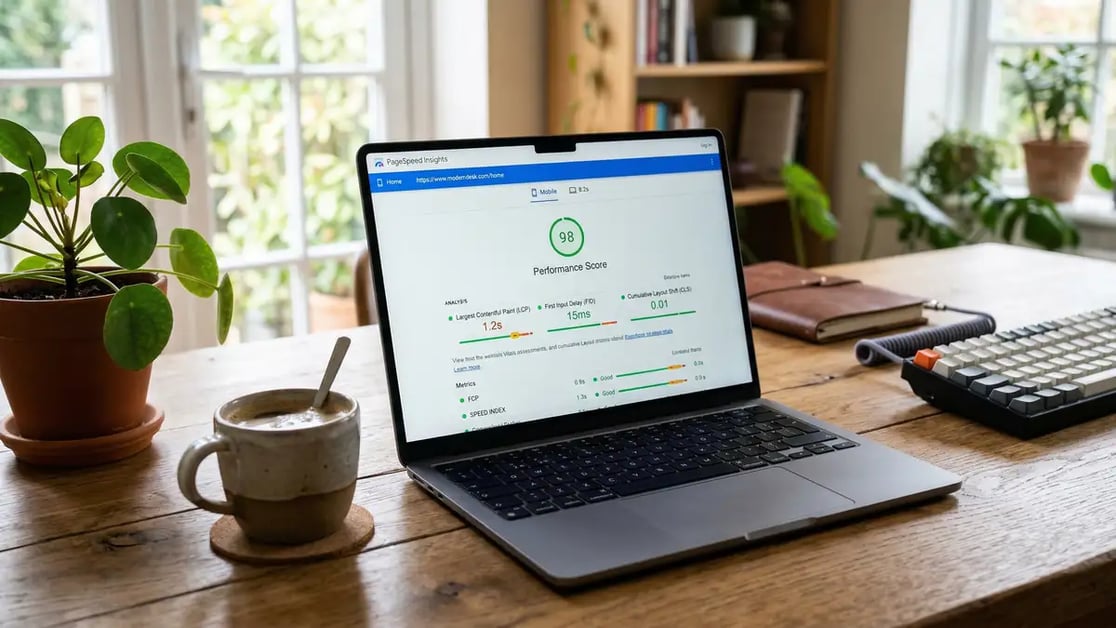
Core Web Vitals are Google's three page experience metrics — LCP, INP, and CLS — and they directly influence your rankings as part of the page experience signal. The thresholds have remained consistent through 2026: Largest Contentful Paint (LCP) must load within 2.5 seconds, Interaction to Next Paint (INP) must respond within 200 milliseconds, and Cumulative Layout Shift (CLS) must stay below 0.1, as defined by Google's Search Central documentation.

HubSpot CMS handles many Core Web Vitals optimizations automatically. The platform compresses images by 40-60% on upload, auto-serves WebP format to compatible browsers, delivers all assets via Cloudflare CDN, and minifies CSS and JavaScript to reduce payload by 30-40%. According to HubSpot's developer documentation, the average HubSpot CMS site achieves LCP scores of 1.8-2.2 seconds out of the box — well within Google's threshold — compared to 2.5-3.5 seconds for WordPress sites requiring manual optimization.
Where manual intervention is still required: hero images that exceed 100KB even after HubSpot compression, third-party scripts (chat widgets, analytics tags) that block the main thread and inflate INP, and DOM insertions above the fold that cause layout shift. For each of these, HubSpot provides configuration points — the Head HTML module for preloading critical resources, the Footer HTML section for deferring non-critical scripts, and explicit image dimension attributes to prevent CLS.
| Metric | Google Threshold | HubSpot Auto-Optimization | Manual Action Needed |
| LCP (Largest Contentful Paint) | < 2.5 seconds | Image compression, CDN, lazy loading | Pre-compress hero images < 100KB; defer non-critical CSS |
| INP (Interaction to Next Paint) | < 200 milliseconds | JS minification, event handler optimization | Defer third-party scripts; reduce JS bundle size |
| CLS (Cumulative Layout Shift) | < 0.1 | Reserved ad space, font-display: swap | Add explicit image dimensions; avoid above-fold DOM insertions |
Sources: Google Search Central — Core Web Vitals, web.dev — Defining Thresholds
What Is the On-Page SEO Checklist Every HubSpot Page Needs?
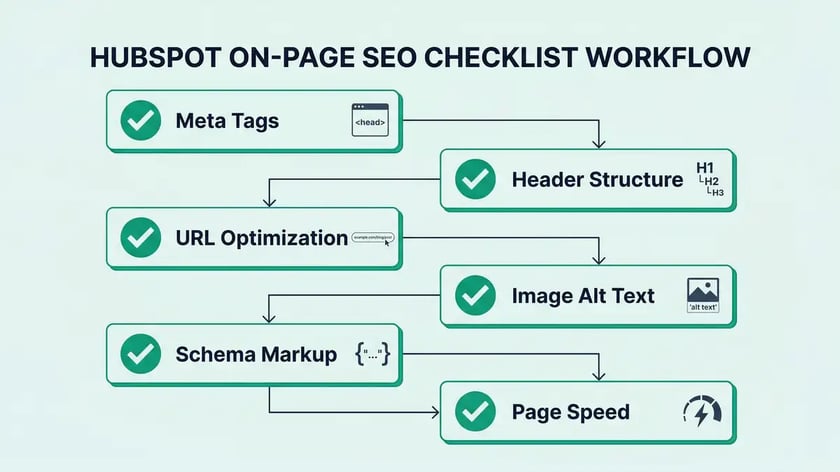
Every page you publish on HubSpot CMS should pass through a systematic on-page SEO checklist before going live. The platform's built-in SEO recommendations panel covers many items automatically, but several high-impact optimizations require manual configuration. This checklist combines HubSpot's native capabilities with the manual steps that separate average B2B pages from top-performing ones.
Configure Title Tag and Meta Description
Navigate to Page Settings → SEO tab. Write a title tag of 50-60 characters with your primary keyword front-loaded. Write a meta description of 150-160 characters with action-oriented language and one data point. Use the SERP preview to verify appearance on both desktop and mobile.
Optimize URL Slug and Canonical Tag
Edit the URL slug to 3-5 descriptive, hyphenated words including your primary keyword. Verify the canonical tag is self-referencing (auto-generated by HubSpot). Only override canonical for syndicated content or cross-domain scenarios.
Validate Header Hierarchy (H1-H3)
Confirm a single H1 containing your primary keyword. Structure 3-7 H2 subheadings as question-based queries matching natural language search patterns. Use H3 for subsections. HubSpot's recommendations panel flags multiple H1 violations automatically.
Add Image Alt Text and Compress Images
Write descriptive alt text of 15-25 words for every functional image, incorporating your topic keyword where natural. HubSpot auto-compresses uploads and serves WebP; for hero images exceeding 100KB, pre-compress using TinyPNG or Squoosh before upload.
Implement Internal and External Links
Add 5-12 internal links to topically relevant pages using descriptive anchor text. Add external links to authoritative sources with rel="noopener" target="_blank". HubSpot's linking tool auto-updates internal links if page URLs change.
Add JSON-LD Schema Markup via Head HTML
Navigate to Page Settings → Advanced → Head HTML. Paste your JSON-LD structured data (Article, FAQPage, BreadcrumbList, Organization). Validate with Google's Rich Results Test before publishing. Schema markup increases CTR by up to 35% according to Schema App research.
Run SEO Recommendations Audit and Fix All Flags
Open the Optimization tab in the page editor. Review every recommendation across content, HTML elements, structure, speed, and indexation. Resolve all high-priority flags before publishing. Re-check the panel after each fix — some recommendations cascade.
Need help architecting your B2B SEO infrastructure across HubSpot? peppereffect installs systematic on-page optimization as part of the 4 Pillars methodology B2B growth framework.
Book Your Growth Mapping CallHow Does Schema Markup Boost Visibility for HubSpot Pages?
Schema markup tells search engines and AI systems exactly what your page content means, and HubSpot's head_html module is where you install it. While HubSpot CMS offers limited native schema support, the recommended approach for B2B pages is custom JSON-LD injected via Page Settings → Advanced → Head HTML. This gives you full control over Article, FAQPage, BreadcrumbList, and Organization schema types — the four that matter most for answer engine optimization and rich snippet eligibility.
The impact is measurable. Tonic Worldwide's 2026 analysis found that websites with properly implemented schema markup receive 4x more rich snippets than sites without structured data, and CTR improvements of 20-82% are documented across multiple schema types. For B2B companies competing in information-dense SERPs, rich snippets — particularly FAQ accordions and article rich cards — create visual differentiation that drives disproportionate click-through.
Important: Google Restricted FAQ Rich Results in 2024
Google now limits FAQ rich results to well-known, authoritative government and health websites. Most B2B sites will not see FAQ accordions in SERPs even with valid FAQPage schema. However, FAQPage schema still benefits generative engine optimization — AI systems like ChatGPT, Perplexity, and Google AI Overviews use structured FAQ data to extract and cite answers. Install it for AEO value, not for SERP rich snippets.

For HubSpot blog posts, combine Article schema (headline, author, datePublished, dateModified) with BreadcrumbList (navigation hierarchy) and Organization (company-level brand signal). HubSpot supports page-level variables like and in Head HTML, but for maximum control and validation, hardcode your JSON-LD values per page rather than relying on dynamic variables. Validate every implementation through Google's Rich Results Test before publishing.
| Schema Type | Rich Result Eligible? | B2B Use Case | AEO Benefit |
| Article / BlogPosting | Yes — article rich card | Blog posts, guides, research | AI systems extract headline, author, date for citation |
| FAQPage | Restricted to authority sites | FAQ sections, support content | High — AI extracts Q&A pairs for direct answers |
| BreadcrumbList | Yes — breadcrumb navigation | All pages with hierarchy | Helps AI understand site structure and content relationships |
| Organization | Yes — Knowledge Panel | Homepage, about page | Brand entity signal for AI brand recognition |
Sources: Schema App — Semantic Value of Schema Markup 2025, Epic Notion — FAQ Schema in 2025

How Do You Optimize HubSpot Pages for Mobile and Page Speed?
Google crawls and indexes the mobile version of your site first, which means mobile optimization is not optional — it is foundational to your HubSpot on-page SEO. All official HubSpot CMS themes are mobile-first responsive by default, with the viewport meta tag auto-included and CSS media queries pre-configured for standard breakpoints at 768px and 1024px. This eliminates the most common mobile usability failures that affect 63% of B2B sites according to industry benchmarks.
However, responsive design alone does not guarantee mobile performance. You must verify that tap targets meet the minimum 48x48 pixel threshold, that text remains readable without zooming, and that no content is hidden from mobile view (which would affect indexation). Use HubSpot's built-in preview mode to toggle between mobile, tablet, and desktop views before publishing, and supplement with Chrome DevTools for precise viewport testing at iPhone SE (375px), iPhone 12/13 (390px), and iPad (768px) widths.
For page speed, HubSpot's automatic optimizations — image compression, CDN delivery, CSS/JS minification — handle the baseline. The manual interventions that create the most impact are: pre-compressing hero images below 80KB before upload using tools like Squoosh or TinyPNG, deferring non-critical JavaScript (analytics, chat widgets) by adding the defer attribute in Footer HTML, and preloading custom fonts via Head HTML to prevent CLS from font swapping. Monitor performance weekly through Google PageSpeed Insights and Google Search Console's Core Web Vitals report.
Key Takeaway
HubSpot CMS sites achieve LCP scores of 1.8-2.2 seconds out of the box — well within Google's 2.5-second threshold. The gap between average and excellent performance comes from manual intervention on hero image compression, script deferral, and CLS prevention. Invest 30 minutes per page on these manual steps and monitor via PageSpeed Insights weekly.
How Does A/B Testing in HubSpot Drive Conversion Rate Improvements?
HubSpot CMS includes native A/B testing that lets you test headlines, CTAs, form fields, hero images, and body copy — the five on-page elements with the highest conversion impact. The platform handles traffic splitting (50/50 for A/B, 33/33/33 for A/B/C), cookie-based visitor assignment, and statistical significance calculation at the 95% confidence level. For B2B pages with sufficient traffic, this creates a systematic conversion optimization loop that compounds over time.
The conversion impact of each testable element is well-documented. Unbounce's landing page benchmark data shows that headline variations drive 8-20% conversion lift, CTA button text changes produce 5-15% improvement, and reducing form fields from 5 to 3 increases submissions by 20-40%. These are not marginal gains — a B2B page converting at 2.9% (the median) that improves CTA performance by 15% moves to 3.3%, which across 10,000 monthly visitors represents 40 additional leads per month.
| Element Tested | Typical Conversion Lift | Minimum Test Duration | Sample Size Per Variant |
| Headline / Page Title | 8-20% | 2-4 weeks | 100+ conversions |
| CTA Button Text | 5-15% | 1-2 weeks | 100+ conversions |
| CTA Button Color | 3-8% | 1-2 weeks | 200+ conversions |
| Form Field Count (5→3 fields) | 20-40% | 2-3 weeks | 50+ conversions |
| Hero Image | 10-25% | 2-4 weeks | 100+ conversions |
| Benefit-Driven vs. Feature-Driven Copy | 8-12% | 3-4 weeks | 100+ conversions |
Sources: Unbounce — Average Conversion Rates, First Page Sage — B2B Landing Page Conversion Rates
The most common mistake in B2B A/B testing is stopping tests too early. HubSpot's test dashboard shows real-time results, which tempts teams to declare winners before reaching statistical significance. A test showing Variant B at 92% confidence is not yet significant — wait for 95% or run longer. Additionally, test one element at a time to isolate impact. Changing both the headline and CTA simultaneously makes it impossible to attribute the result. For B2B website architecture, systematic A/B testing of sales page elements is one of the highest-ROI optimization activities available.
How Do Topic Clusters and Internal Links Power On-Page Authority?
Internal linking is the most underutilized on-page SEO lever in HubSpot CMS, and topic clusters are the architecture that makes it systematic. HubSpot's own case studies documented a 50% organic traffic increase within one year when implementing topic clusters — a pillar page covering a broad topic linked bidirectionally to 8-15 cluster pages covering specific subtopics. More recent data from WhiteHat SEO's 2026 analysis shows clustered content drives 30% more organic traffic and holds rankings 2.5x longer than standalone posts.
In HubSpot CMS, internal linking is built directly into the rich text editor. Select anchor text, click Insert Link, and search for related pages by title — HubSpot auto-tracks the link and updates it if the target URL changes. The platform's topic cluster validation tool also flags missing links between subtopic content and pillar pages, ensuring your cluster architecture remains intact as you publish new content.
For B2B companies running a systematic SEO content marketing program, the rule of thumb is 1-3 internal links per 500 words. Each link should use descriptive, keyword-relevant anchor text — not "click here" or "learn more." Link cluster pages to their pillar in the opening paragraph, and cross-link between related clusters where the context is natural. A well-linked B2B content strategy does not just improve individual page rankings — it concentrates topical authority across your entire domain, making every new piece of content easier to rank.
Key Takeaway
Topic clusters with proper internal linking drive 30-50% more organic traffic than standalone content. Use HubSpot's native linking tools and topic cluster validation to maintain your architecture. Target 1-3 internal links per 500 words with descriptive anchor text, and ensure every cluster page links back to its pillar in the opening paragraph.
Frequently Asked Questions
What is HubSpot on-page SEO and how does it differ from general on-page optimization?
HubSpot on-page SEO refers to optimizing page-level elements — meta tags, headers, URLs, images, schema markup, Core Web Vitals, and internal links — using HubSpot CMS's native tools and configuration options. The core principles are identical to general on-page SEO, but the implementation differs because HubSpot handles many optimizations automatically (image compression, CDN delivery, canonical tags, responsive design) while providing specific configuration paths for manual settings like Head HTML schema markup and SEO recommendations audits.
How do I access the SEO recommendations tool in HubSpot?
Navigate to your content page in the HubSpot editor, then open the Optimization tab in the left sidebar. You can also access page-specific recommendations by clicking the Optimize button in the content editor sidebar. The tool scans your page across six categories — content, title, topics, mobile friendliness, crawling and indexing, and links — and provides actionable recommendations ranked by priority. For a site-wide audit, go to Marketing → SEO and click "Audit All Pages."
Does HubSpot CMS automatically optimize for Core Web Vitals?
HubSpot CMS automatically handles image compression (40-60% size reduction), WebP format serving, Cloudflare CDN delivery, and CSS/JavaScript minification. These automatic optimizations typically achieve LCP scores of 1.8-2.2 seconds without manual intervention. However, you still need to manually pre-compress oversized hero images, defer non-critical third-party scripts, and add explicit dimensions to images and iframes to prevent CLS. Monitor your scores through Google Search Console and PageSpeed Insights.
How do I add schema markup to a HubSpot page?
Navigate to Page Settings → Advanced → Head HTML and paste your JSON-LD structured data wrapped in a <script type="application/ld+json"> tag. For blog posts, combine Article schema (headline, author, dates) with BreadcrumbList and Organization. Validate using Google's Rich Results Test before publishing. HubSpot supports dynamic variables like in Head HTML, but hardcoding values per page gives you more control and easier validation.
What is the ideal number of internal links per HubSpot page?
Target 5-12 internal links per page, following the guideline of 1-3 links per 500 words. Use descriptive, keyword-relevant anchor text rather than generic phrases. Link cluster content to its pillar page in the opening paragraph, and cross-link to related content where context is natural. HubSpot's SEO recommendations engine flags pages with fewer than 2 internal links and suggests related pages to link to.
How does HubSpot A/B testing work for conversion optimization?
In the page editor, navigate to Page Settings → A/B Test to create variants. HubSpot splits traffic evenly between variants using cookie-based assignment and calculates statistical significance at the 95% confidence level. You can test headlines, CTA buttons, form fields, hero images, and body copy. Run tests for a minimum of 1-2 weeks with at least 100 conversions per variant before declaring a winner. Test one element at a time to isolate impact.
Should I use HubSpot's smart content for SEO personalization?
Use smart content cautiously for SEO. Google only indexes the default variant — personalized content swapped via JavaScript is invisible to crawlers. Use smart content for non-SEO-critical elements like testimonials, CTA colors, or form placeholder text. For SEO-critical elements like headlines and meta descriptions, create separate landing pages per audience segment rather than relying on dynamic personalization that search engines cannot see.
Ready to Deploy Systematic On-Page SEO Across Your HubSpot Site?
peppereffect architects conversion-focused on-page optimization as part of the 4 Pillars methodology — from meta tag configuration to schema markup, Core Web Vitals, and A/B testing infrastructure. Book a Growth Mapping Call to diagnose your current on-page gaps.
Book Your Growth Mapping CallResources
- HubSpot Knowledge Base — View SEO Recommendations in HubSpot
- HubSpot Developer Docs — Optimizing Your HubSpot CMS Site for Speed
- Google Search Central — Understanding Core Web Vitals
- web.dev — How Core Web Vitals Thresholds Were Defined
- First Page Sage — B2B Landing Page Conversion Rates 2026 Report
- Unbounce — Average Conversion Rates for Landing Pages
- Schema App — The Semantic Value of Schema Markup in 2025
- HubSpot — How to Ignite Organic Growth with Topic Clusters